
Edit Client Application Properties
To edit the high-level properties of a Client Application:
-
Select Admin from the top navigation bar, then select Access > Client Applications from the side navigation menu. The Client Applications screen is displayed.
-
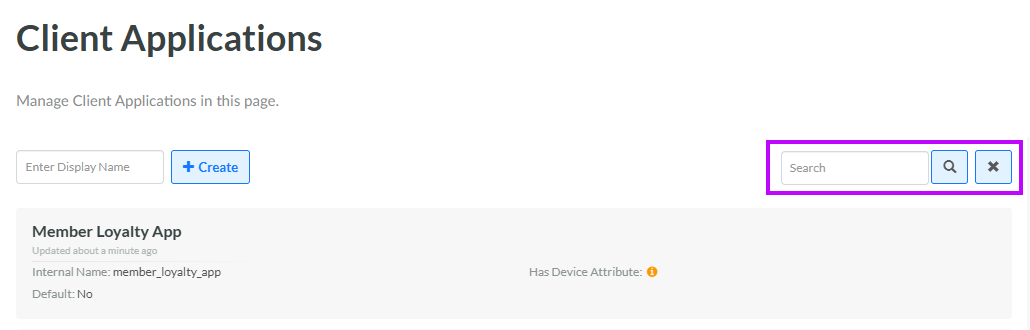
Optionally, search for the desired Client Application by entering a text string in the Search field. Click the Search icon. The platform filters the screen to show only the Client Applications that have this text string with the Client Application display name or internal name. Click the desired Client Application. The Client Application Details screen is displayed, with the Definition tab selected.
-
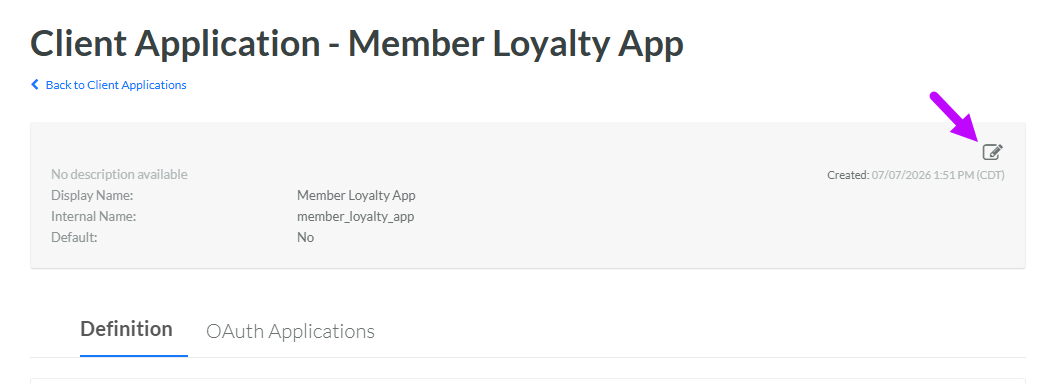
Within the header area of the screen, click the Edit icon. The Edit Client Application pop-up window is displayed.
-
Optionally, in the Display Name field, enter a new name for this Client Application.
- The Internal Name is automatically populated based on the Display Name value. This field is not editable by default. To edit the Internal Name, check Edit Internal Name. A confirmation dialog box is displayed; click Ok. Edit the Internal Name value.
-
Optionally, in the Description field, enter a description of this item.
-
Optionally, to make this Client Application the default option within your Loyalty account, check Default. A confirmation dialog box is displayed; click Confirm.
-
Click Save.
